iPad View Source Bookmarklet
For a few years I’ve been using this little bookmarklet, written by Abe Fettig, on my iPhone to view page source in Mobile Safari. It works well, but unfortunately the output is not optimized for viewing on the iPhone. Because I use the bookmarklet so infrequently, it’s never really bothered me.
Then I installed the same bookmarklet on my iPad. I found myself using the iPad to browse the web more often, and more often wanting to click view source. Quickly the poor screen formatting became enough of a nuisance to motivate me to spend a few lines of code fixing it.
Here’s an example of the source produced by Abe Fettig’s original bookmarklet (on the iPad):
Original View Source
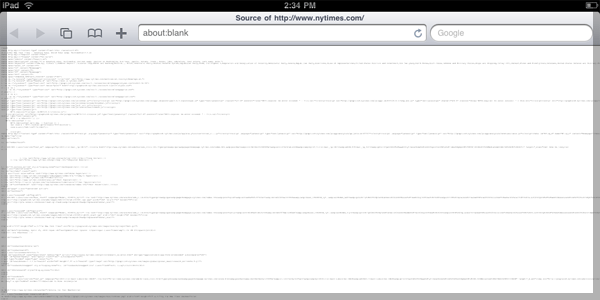
It takes a lot of zoom pinching to get the text to a legible level. Here’s an example of what the improved version displays:
New and Improved
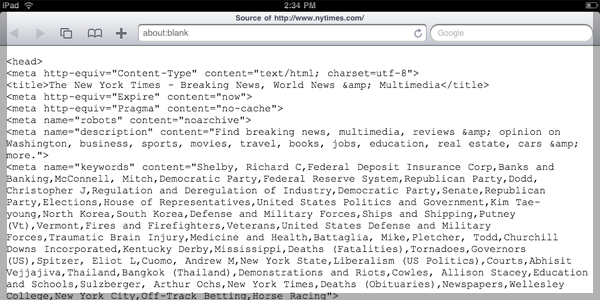
Much better. To do it I made two small additions (and a few tweaks) to the original. One, I added a viewport meta tag, setting the width to device-width. And two, I added overflow:auto and white-space: pre-wrap styles to the pre element wrapping the displayed source code. Behold:
Improved Bookmarklet Code
javascript:(function(){ var w = window.open('about:blank'), s = w.document; s.write('<!DOCTYPE html><html><head><title>Source of ' + location.href + '</title><meta name="viewport" content="width=device-width" /></head><body></body></html>'); s.close(); var pre = s.body.appendChild(s.createElement("pre")); pre.style.overflow = 'auto'; pre.style.whiteSpace = 'pre-wrap'; pre.appendChild(s.createTextNode(document.documentElement.innerHTML)); })(); |
If you already know how to install a bookmarklet in Mobile Safari, here’s the raw code. Have fun.
Or if you want to add the bookmarklet to your desktop browser and then sync to your iPad, drag this link to your bookmarks bar: iPad View Source.
For the rest of you, who might be thinking, “how do I get this teh hotness onto my business?”, worry not. We’ve got you covered. It’s like this…
How to Install a Bookmarklet on Mobile Safari
Navigate to this page on your iPad and select “Add Bookmark”. Change the name of the bookmark to “View Source” or whatever you like. Tap “Save”.
Next, copy the bookmarklet from here. (Select All > Copy.)
Lastly, go to your bookmarks, tap “Edit”, select the bookmark you just created, and replace the URL by pasting in the new code. Tap “Done” and you’re done.
A few things:
- The source you’ll see is the DOM source (“generated source”), not the original HTML source.
- The ends of some very long strings are partly hidden from view.
- It works well on the iPad but on the iPhone the text wrapping does not work as well (the ends of more lines are cut off).
- It should work in any browser that supports the
white-spacevaluepre-wrap. But I’ve only tested on iPad, iPhone, and Opera Mini on the iPhone. - For some reason the source code output is not fully selectable. You can Select All but you cannot define segments to select.
If anyone knows of a better solution, or has any recommendations to improve this one, please let me know. You can also fork the gist on github.
Both comments and pings are currently closed.
Discussion
Hi Rob,
I had the same problem, but I decided to write an app to handle it. It uses a bookmarklet to load the current web page into my app (called Code), and it displays the source with syntax highlighting. It’s a universal binary for iPhone and iPad, and it’s two bucks. https://codeapp.ca.
Cheers!
Aaron.
I’ve been using this bookmarklet on my iPad for a few days now and it’s really useful, but there’s one problem that really frustrates me: If I try to select text from the source listing to copy and paste elsewhere, I can only get a single word at a time. It won’t let me select more than that; if I try, it deselects everything I’ve already got! I’d really love it if that could be fixed, because that would make it a snap to install bookmarkets!
Antaeus,
I know, for some reason the text selection doesn’t work. I don’t have a solution for it but here’s another view-source bookmarklet you may want to check out: https://snoopy.allmarkedup.com
Nice bookmarklet!
I modded it to use green text on black by adding the following to the header.
body{background-color:black;color:#00FF00;}
Also, I discovered that if you scroll to the bottom of your displayed source you can click to select and it selects the entire page. A kludgey work-around to select until you track down the bug.
Snoopy doesn’t work for me since you can’t scroll it’s source tab.
Cool, just tried it. It works on single pages, but I was really trying to get the code from a button in a pop up. I was able to just hit copy on the image and then paste it into Notes and the code was there…
Thanks. this helped me look at the new html5 app from ft on iPad.
Nice article, really inspired my to toy around with bookmarklets!
Actually I’ve made an alternative version, trying to include the two main features I really missed, syntax highlighting and clickable links: https://ole.michelsen.dk/blog/view-source-on-the-ipad-and-iphone/
It’s not as “pure” as your version, as it bounces the source off my own server (which does all the highlighting work), but it this approach ensures that you can select text as your normally would
Thank you very much – glad to find one more tool that lets me be productive on my iPad.
Thanks for the code! I snagged it to use in this bookmarklet! https://keithwyland.github.com/attrebuke/